
A customizable HUD, gameplay clips, tune viewing and lap analysis for Forza Horizon 6.
Supports Steam and Xbox app / Microsoft Store editions on Windows PC.
Versions before 2.4 can show delayed or choppy tachometer motion on NVIDIA systems when G-SYNC/VRR is enabled. I recommend updating to the latest release.
Download Wisp 2.6.3 ·
Website ·
Changelog ·
Architecture
Support Wisp: Ko-fi ·
Buy Me a Coffee
2.6.3 restores the HUD and Tune reading after the latest Forza update on Steam and Xbox app / Microsoft Store. Compatibility status is clearer, and Wisp automatically rechecks while waiting for support for a game build.
Clips · Tune · Lap review · Live map and lap delta · Install · 2.6.3 release notes
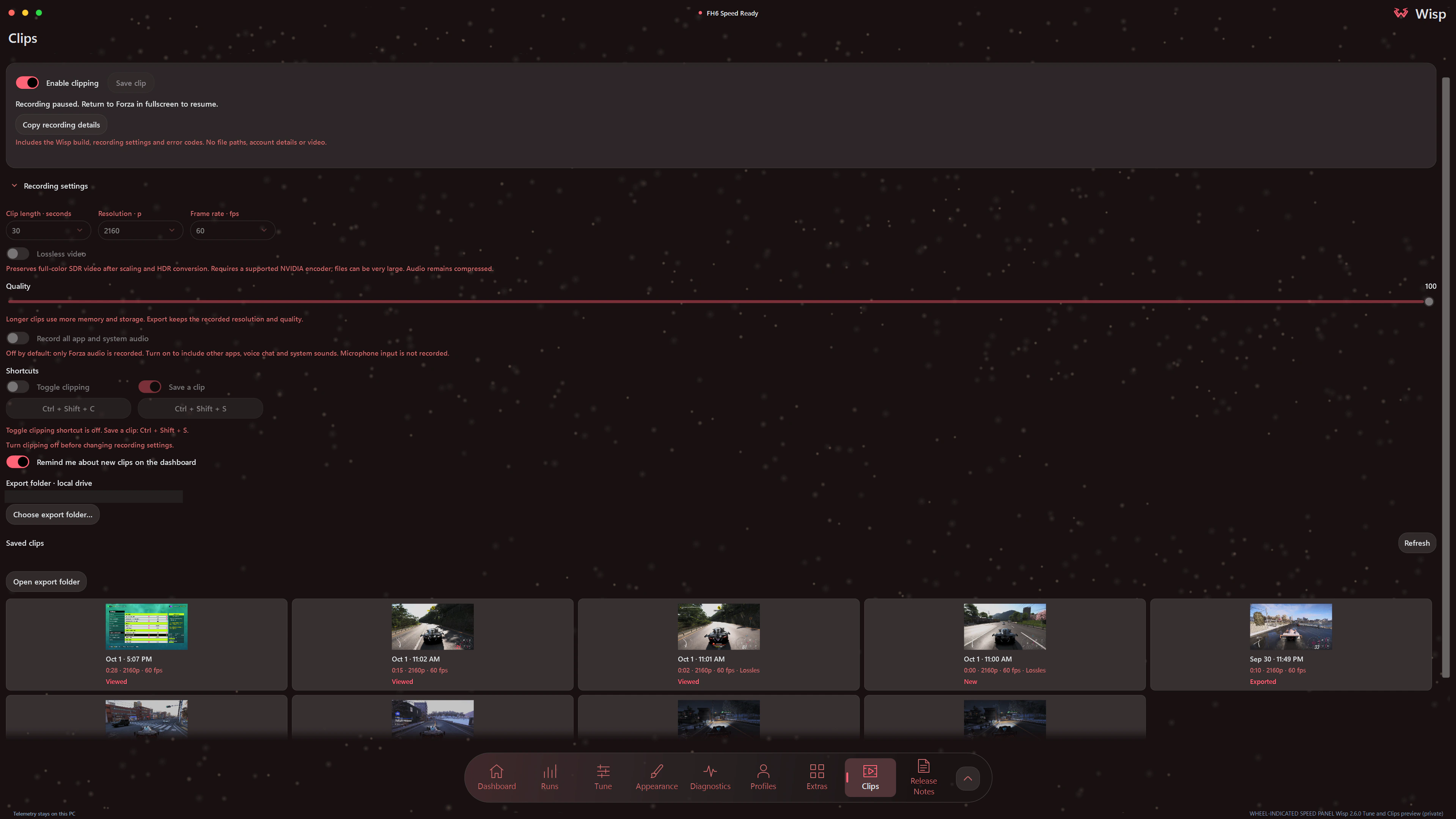
Enable clipping to keep a rolling recording, then press Save clip or your shortcut to keep a moment. Saved clips stay in Wisp, ready to watch or export as MP4. Choose the filename and folder when exporting. For HDR and lossless clips, Wisp first explains the two choices: a compatible SDR H.264 copy for sharing, or the original recording.
| Recording option | Choices |
|---|---|
| Clip length | 30 seconds to 5 minutes, in 30-second steps. Default: one minute. |
| Resolution | 360p, 480p, 720p, 1080p, 1440p or 2160p. Default: 1080p. |
| Frame rate | 30 or 60 fps. Default: 60 fps. |
| Compressed video quality | 10–100. Default: 75. |
| Lossless video | Optional, off by default; requires a supported NVIDIA encoder. |
| HDR video | Optional 10-bit HDR on supported NVIDIA hardware. Off by default; normal recording uses SDR H.264, including on HDR screens. |
| Audio | Forza audio by default, or all app and system audio. Microphone input is not recorded. |
| Shortcuts | Separate optional shortcuts to toggle clipping and save a clip. |
| Shortcut sounds | Optional sounds for shortcut results. On by default. |
| Reminders | Dashboard reminders for new clips, on by default. |
| Export folder | Choose a default local folder, or another destination when exporting. |
Clipping is off by default. Turn it off before changing recording settings. It records the screen containing fullscreen or borderless-fullscreen Forza, including the Wisp HUD and anything else visible there. Switching away or minimizing pauses recording and keeps available footage ready to save. Ultrawide and 16:10 recordings keep their proportions with black bars.
Saves contain up to the selected length of available history. Lossless preserves the prepared full-color video after scaling and color conversion; audio remains compressed. It can use substantial storage, and the available history depends on the scene and free space.
Browse saved clips by thumbnail and see which are new, viewed or exported. Saved clips appear first on the Clips page, with recording settings folded below them. Playback waits for Play; pause, seek, adjust volume or export from the player. HDR lossless clips prepare a reusable playback copy with visible progress while keeping the original recording.
Search clips by name, date, resolution, frame rate, HDR or lossless. To rename or delete a clip, right-click it, select it and press F2 or Delete, or use the player's buttons. Each name can be used once, and deleting asks first.
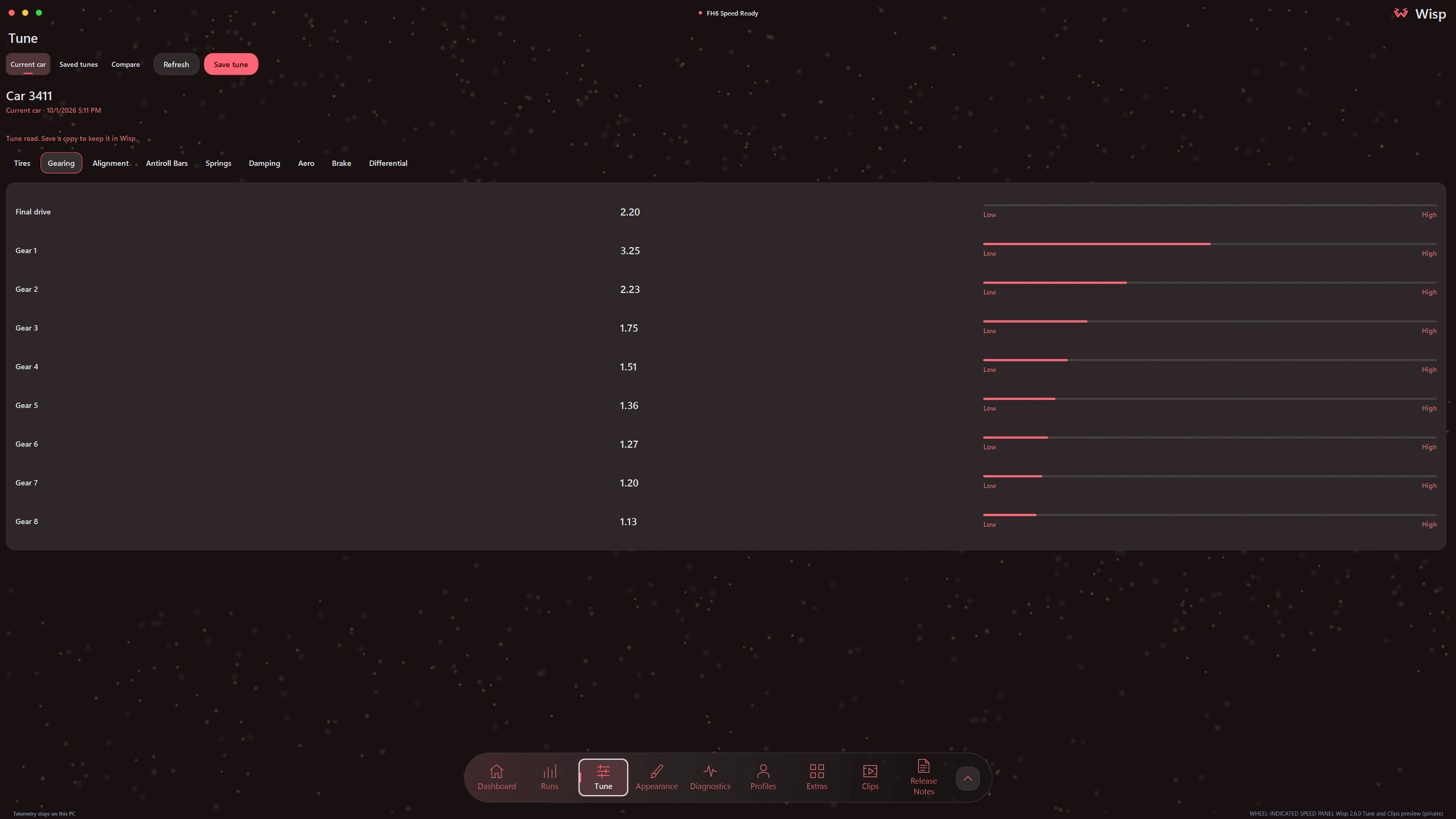
View the tuning settings fitted to your current car, including locked tunes on Steam. Save a named setup with a description, open it later in Wisp, or compare saved setups or the current car side by side. Comparisons highlight changed values. Delete saved tunes you no longer need; snapshots attached to runs are kept.
Browse tires, gearing, alignment, antiroll bars, springs, damping, aero, brakes and differential settings. Attach a checked tune snapshot when recording a run to keep its setup with the results.
Current-car reading supports Steam and Xbox app / Microsoft Store FH6 with imperial game units. Saved setups are local snapshots for viewing and comparison, and can be opened with the game closed. Wisp checks for updated Forza support automatically.
Open a saved run in Runs → Lap review to inspect the line you drove. Move one cursor across the map and graphs to review speed, inputs, G-force, RPM, gear and wheel readings. Choose a section and compare its time, distance and inputs with another lap or a pinned benchmark. Events mark braking, throttle pickup and shifts.
Turn on Save completed laps automatically to keep laps for later review, grouped by day and car. It uses the timing mode selected in HUD settings while Wisp is running. Choosing Run B takes priority over a compatible pinned benchmark.
The live track map follows your car around the circuit learned from your first full lap. Lap delta compares your progress with your session best or previous lap at the same place on the track. Negative means ahead; positive means behind.
Both remain beta features. Enable them in Appearance → Gauges → Lap delta and adjust their colors, size and position. Choose Race / Rivals timing, or Time Attack at Legend Island, Hokubu, Soni and Sekibe.
HUD profiles now include driving settings and saved gauge positions. The optional quick tour introduces Clips, Tune, live map, lap delta and lap review.
Fixes for clip recording, playback, exports and Tune reading, clearer error reports, and preparing clips without closing Forza. Release notes.
A new HUD now starts on Forza's monitor when the game is detected. If your HUD is already saved on the wrong screen, focus Forza once, then use Reset HUD positions in Wisp. Saved layouts stay unchanged until you move or reset them. Release notes.
The HUD keeps working when Forza restarts, telemetry survives oversized packets, and saved runs, reference laps, updates and renderer status behave as shown. Release notes.
Time Attack attempts now end when Forza ends them, reference laps survive a Wisp restart, and the lap delta panel shows the reference lap's time. The lap overlays redraw only when their content changes, and HUD profiles keep more of your colors. Release notes.
Adds lap delta (beta): see how far ahead or behind your session best or previous lap you are, compared at the same place on the track, in races, Rivals and Time Attack. A live track map (beta) follows your car around the circuit. Turn both on in Appearance under Lap delta. Release notes.
Fixes Drift Zone angle-bonus guidance showing UNVERIFIED BUILD on Xbox app / Microsoft Store FH6 3.440.853.0 on Windows PC. Beta shift guidance remains Steam-only and is now marked unavailable on Game Pass. Release notes.
Wisp 2.4 improves analogue needle motion with G-SYNC while Forza has focus. When the main HUD fits on one monitor, it uses a monitor-sized native window. The overlay requests passive composition updates, and needle animation receives telemetry independently of the interface. The update also fixes queued playback, readiness checks, and worker waits, and reuses render command storage and unchanged needle pixels.
Read the investigation, fixes, troubleshooting and credits. Thanks to fredemmott for sharing Microsoft's Direct3D-team guidance on transparent overlays and variable refresh rate.
Changing the app accent color on another tab no longer crashes Wisp. The dashboard oval returns in the selected color when you switch back. Supplementary gauges stay separate in digital layouts. If an update cannot start, Wisp stays open and shows repair instructions.
Shift guidance is beta and off by default. Calibrate each supported combustion car and tune with a rolling full-throttle pull and a confirming upshift. Green, yellow and flashing red stages show the approach to a calibrated RPM target. The beta supports combustion cars on Steam FH6 build 6.440.853.0. It is not available on the Xbox app / Microsoft Store (Game Pass) edition.
The boost and tire-temperature Appearance preview fixes from 2.3.2 are included.
Drift mode holds the power and torque numbers and needles through brief combustion-engine power cuts. The numbers pulse in a color you choose, with a Flash frequency slider from 0.5 to 3 Hz. The default is 1.25 Hz.
Enable it in Appearance > Gauges > Engine output > More options and choose Drift cut flash under Appearance > Colors. Drift mode is off by default; its settings save with HUD profiles. Recorded telemetry and peak readings keep their original values.
Read the Wisp 2.3.4 hotfix release notes.
The shared native renderer, smaller attached EV gauges, and Appearance preview fixes from Wisp 2.2 are included.
The four supplementary combustion analogue dials match at 100% and stay aligned when resized. Power and torque have separate size sliders, boost and tire sizing works while attached, and a 50–200% G-force meter size control applies across attached, detached, and Combined layouts. Previews follow these settings, including saved gauge sizes and positions.
Wisp 2.1 introduced the power and torque gauges described below.
Power & torque · Dashboard · Drift gauge · Runs · Appearance · Gallery · Install
See live BHP and torque beside the speedometer, with native-style dials, needles, peak markers, and peak readouts. Turn either gauge on or off in Appearance > Gauges > Engine output. Attach each one to the speedometer, or detach it and use Edit HUD layout to place it separately. Torque follows your Nm or lb-ft preference. See the gauges in gameplay.
Use the separate Power gauge size and Torque gauge size sliders to resize each dial. Under More options, adjust smoothing and a fixed range for each car. Set from this run uses the peaks Wisp has observed plus 10%; the scale then stays fixed while driving. After retuning, reset the peaks and make another pull before setting the range again.
The Gauge start, Gauge middle, and Gauge end colors apply across boost, tire temperature, power, and torque. Optional colored numbers follow the same palette. Smoothing defaults to 250 ms; negative output is hidden unless you enable Show negative power and torque. Recorded telemetry retains its original values.
Fresh installations start with Native Analogue and all gauges enabled, with matching sizes for the four supplementary dials. Updates preserve existing settings, profiles, tire calibration, and saved runs.
Read the Wisp 2.1 release notes.
The dashboard shows a curved tachometer, large speed and gear readings, and live power and torque. Use Display mode as a borderless dashboard on a second monitor. Fill the screen or resize it to share the monitor with something else. Press F11 from Dashboard to switch modes, or Esc to leave. Driver assists distinguish Disabled, Enabled, and Active.

Add a drift gauge to see your angle and the share of the Drift Zone angle bonus you are using. The scoring-angle range starts at 10° and the angle bonus reaches its ceiling at 59.4°. A 20–40° drift already corresponds to roughly 80–90% of that maximum angle bonus. Balance your angle with speed and line while the game is awarding points.
Choose the guidance in Appearance > Gauges. Adjust its size and position, enable dark shading for bright skies, or add a black background with adjustable opacity. The gauge keeps its ticks and readings without an outer frame. Below 5 mph ground speed (about 8 km/h), it hides the angle, marker, and bonus so a stationary car on a slope or spinning its wheels does not show misleading drift guidance.

Record a drive from Dashboard or Runs, or use a recording shortcut. Set a countdown or timed stop, mark moments while driving, then add a name, tune label, and notes. Recordings stay on your PC and can last up to ten minutes.
Search saved runs by name or tune label. Names, tune labels, and notes save automatically, with a Saving… / Saved indicator. Switching runs keeps your pending edits; if saving fails, Retry lets you try again.
Select Show graphs to open the workspace. Overview, Engine, and Tires & handling group related measurements. Show or hide graphs, reorder them, and choose their width. Review statistics as cards or a table. A shared cursor and selectable time range make it easier to inspect the same moment across speed, inputs, RPM, power, torque, boost, G-force, and tire temperatures.
Compare two runs overlaid or side by side, with distinct colors and line styles. Match an acceleration speed range, inspect power and torque against RPM, or compare tire heat and cornering load. Summaries explain the measured differences and call out gaps or different starting conditions.
Use Import runs for individual .wisprun files or a Wisp library ZIP.
Export all backs up the library, and Delete all has confirmation and Undo.
Use the Export menu for a shareable run file or raw CSV, and Save image
for a graph report. Imports skip identical runs and reject conflicting duplicates
without overwriting existing data.
Appearance groups Layout, Gauges, Colors, and Behaviour beside the live HUD preview. Set your accent, backgrounds, text, borders, glow, surface opacity, corner rounding, and spacing. G-force dot and trail colors are independent, and the G-force meter can be disabled in every layout.
Optional background particles follow your accent or a separate color. Pause or hide them at any time. The dashboard adds accent lighting and particles along its rim. Fresh installations use the setup wizard's palette; updates retain your colors and saved data. Prefer the previous interface? Enable Use legacy interface in Appearance > Layout, then restart Wisp.
Common settings stay visible, with detailed adjustments under More options. Click the connection status to check game detection, incoming telemetry, and HUD visibility. The panel includes help for the current connection state.
An optional quick tour introduces Clips, Tune, live map, lap delta and lap review. Start from the welcome banner or choose Replay the quick tour in Release Notes.
Download Wisp 2.6.3 · 2.6.3 release notes · Changelog
Older interface screenshots retain their original version labels. The gameplay gallery also shows the 2.1 gauges.
Wisp shows the speed implied by the driven wheels rather than only the car's ground speed. The difference becomes visible during wheelspin, burnouts, drifting, lockup, and loss of grip.
FH6 Data Out supplies the local telemetry stream. Wisp learns the effective rolling radius of the current tires and calculates speed from the driven wheels for FWD, RWD, or AWD. The result appears in the Windows overlay.
-
Clips: save recent gameplay, watch it in Wisp and export an MP4.
-
Tune: view current settings, including locked tunes on Steam, save setups and compare them.
-
Lap review: inspect your line and telemetry, compare sections and save completed laps automatically when enabled.
-
Wheel-indicated speed with separate front and rear calibration for staggered AWD setups.
-
Digital and Analogue Native HUD layouts for combustion and electric cars.
-
A live boost gauge for confirmed turbocharged and supercharged cars. Digital mode adds a rail below the tachometer, while Analogue mode offers a 0 to 70 PSI or 0 to 5 bar dial.
-
PSI or bar readouts, a learned per-car color scale, optional colored pressure numbers, attached or detached Analogue placement, a custom three-point gauge gradient, and an independent Digital option that uses the stock tachometer material.
-
Front and rear tire-temperature gauges for both Native layouts. Digital mode uses two markers in one neutral rail with no colored fill, while Analogue mode uses two solid-color needles in one dial. Values support Fahrenheit and Celsius.
-
Separate power and torque dials with live BHP, Nm or lb-ft, peak markers, attached or detached placement, adjustable smoothing, and fixed ranges saved per car.
-
Live RPM, gear, driver assists, electric power, regeneration, and redline state when the installed FH6 build supports those sources.
-
Standalone or Native-attached G-force display with a longer motion trail.
-
A borderless second-screen dashboard with a resizable Display mode.
-
Lap delta against your best or previous lap, and a live track map (both in beta).
-
Drift angle and angle-bonus guidance, or a custom target and tolerance.
-
Application styling, individual G-force dot and trail colors, and saved HUD profiles for HUD and driving settings, gauge colors and positions.
-
Local run recording, configurable graphs, overlaid or side-by-side comparisons, report images, CSV, shareable run files, and whole-library backup and import.
-
Optional update checks whenever Wisp opens and daily while running, a customizable HUD visibility shortcut, and local debug logging with storage limits and ZIP export for issue reports.
Actual Wisp captures with custom colors. Click the 2.1 gameplay image to inspect the original-resolution HUD. The 2.0 interface captures retain their prerelease version labels.

Wisp 2.1: live power and torque alongside the Native Analogue speedometer and Drift Zone angle gauge. |
|

Display mode for a dedicated screen or a resizable part of your second monitor. |

Configurable graphs and comparisons, with a separate color for each run. |

Live HUD preview, gauge controls, colors, and application styling. |

Live telemetry, tire calibration, Native HUD capabilities, and local debug controls. |

Saved HUD profiles with their own layouts and colors. |

Startup behavior and application updates. |
To try software rendering for the live HUD, enable CPU rendering in Diagnostics. Right-click Wisp's tray icon, choose Exit Wisp, then reopen it to apply the change. CPU mode reuses unchanged dial-background pixels while the needle and live readings continue updating.
GPU rendering remains the default. CPU mode can increase CPU usage, and Windows still uses the GPU to compose the overlay. Live HUD gauges share the native renderer; Appearance previews and the fallback retain WPF rendering.
- Windows 10 or Windows 11, 64-bit.
- Forza Horizon 6 for Windows PC from Steam, the Xbox app, or Microsoft Store, with Data Out enabled.
- Set Forza Horizon 6's display mode to Fullscreen.
Native process-derived HUD state supports Steam FH6 builds 6.461.691.0 and 6.440.853.0, and
Xbox app / Microsoft Store PC builds 3.461.691.0 and 3.440.853.0. Previous bundled maps remain
available for installations that have not updated FH6. See
Compatibility and Update Safety for the
complete bundled-build list and validation rules. Data Out reception and dashboard
calculations remain independent of those contracts. Wisp runs alongside a local
Windows PC installation of the game.
The installer is self-contained and installs for the current user. It does not require administrator access or a separate .NET runtime.
- Download Wisp-Setup-2.6.3.exe.
- Run the installer.
- Complete the required setup wizard on first launch.
The release page also provides the installer checksum and a ZIP containing the same installer. To verify the download, compare its SHA-256 with the .sha256 file:
[WINDOWS POWERSHELL]
$installer = Get-ChildItem .\Wisp-Setup-*.exe | Select-Object -First 1
(Get-FileHash -LiteralPath $installer.FullName -Algorithm SHA256).Hash
Compare the result with the value in the adjacent .sha256 file. The current
installer is unsigned, so Windows may show an unfamiliar-publisher warning.
Wisp checks for updates whenever it opens and every 24 hours while it remains running, including while waiting in the tray. Turn off Automatically check on open and daily in Extras to disable those checks. You can also select Check for updates there to check immediately. Automatic checks discover releases; they never download or install an update without your confirmation.
An accepted release must be public, stable, and immutable. Numeric tags must match the installer's normalized version, and GitHub must provide the installer's exact byte length and SHA-256 digest. Downloads are limited to the canonical GitHub release URL and GitHub's HTTPS release-asset hosts. Wisp shows the release summary and asks you to confirm the download, installation, and restart. After confirmation, it downloads the installer and verifies its length and digest before starting installation. The separate update helper repeats those checks, waits for Wisp to exit, runs the current-user installer silently, validates the installed version, and then restarts Wisp.
The updater uses GitHub's anonymous release endpoint and contains no repository credential. If GitHub's release API or artifact delivery is unavailable, the check reports that the update service is unavailable. The installer remains unsigned whether it is started manually or through Wisp.
A verified in-place update preserves a completed setup. A fresh installation always opens the setup wizard before the dashboard or overlays are available.
In Settings > HUD and Gameplay:
- Enable Data Out.
- Set the IP address to
127.0.0.1. - Set the port to
5500, or to the listener port selected in Wisp. - Keep the car moving briefly while the setup wizard validates the stream.
The wizard also confirms the display mode and stock HUD setting before it opens the dashboard or driving overlays.
Wheel-indicated is the default. Wisp learns effective rolling radius from clean, straight driving with grip, then enables wheel-indicated speed once the current tire profile passes calibration.
FH6 speed uses the packet's vehicle-speed value directly. See Wheel-Speed Model for the complete calibration and drivetrain rules.
Native HUD layouts start at FH6's bottom-right HUD position. Disable the stock speedometer to avoid overlap, then use Edit HUD layout if a custom display needs different placement or scale.
The Native provider opens the supported FH6 process with query/read access only. It does not inject code, hook rendering, call game functions, or write process memory. Changed or unknown game build identities disable the affected process-derived state rather than reusing data from another build.
See Compatibility and Update Safety for the supported builds, validation boundary, and update behavior.
- Telemetry is accepted only from
127.0.0.1. - Settings and tire profiles remain in the current user's local application data.
- The installer is not code-signed.
- A changed FH6 build identity requires a reviewed compatibility map and may require an application update.
- Relearn the current tires after changing wheel or tire diameter.
Use a Git checkout and the .NET 8 SDK selected by global.json. Building the
native renderer also requires Visual Studio C++ build tools for x64 and a
Windows SDK containing fxc.exe; the application build compiles and copies
Wisp.NativeRenderer.dll automatically. Python 3.12 or later runs the offline
compatibility-audit tests; CI pins Python 3.14.7. Inno Setup 6 is needed only to
package an installer.
Review the contribution and permission requirements before preparing changes. Installer packaging requires Git and a clean checkout; a downloaded source ZIP is not sufficient. See Validation for the packaging checks and Shaders for rebuilding shader bytecode after HLSL changes.
[WINDOWS POWERSHELL]
dotnet restore Wisp.sln --locked-mode -p:NuGetAudit=true -p:NuGetAuditMode=all
dotnet format Wisp.sln --verify-no-changes --no-restore --verbosity minimal
dotnet test Wisp.sln --configuration Release --no-restore --nologo --disable-build-servers -m:1 -p:UseSharedCompilation=false
python -m unittest discover -s tools/tests -p "test_*.py" -v
To build the self-contained installer:
[WINDOWS POWERSHELL]
.\installer\Build-Installer.ps1Wisp is proprietary, source-available software. Official unmodified binaries may be used personally and non-commercially under the Wisp Proprietary Source License.
Forza Horizon 6 © Microsoft Corporation. Wisp is an unofficial community project and is not endorsed by or affiliated with Microsoft.
The Native HUD content under src/Wisp.App/Assets/Native is based on publicly
circulated Forza Horizon 6 material. I claim no ownership of Microsoft
Game Content. See Third-party notices and the
Microsoft Game Content Usage Rules.